Expand Statseeker Server Storagejason.arancelovic@statseeker.com2026-02-12T02:14:42+00:00
Index
Overview
Statseeker stores your data indefinitely and over time this storage may fill up, requiring you to resize the storage to accommodate more data. This document outlines the procedures for resizing storage on both physical and virtual Statseeker deployments.
[top]
Physical Server Storage
For physical Statseeker servers, resizing storage typically involves migrating your server to a new physical server with larger storage capacity.
- Backup the Statseeker server
- Install Statseeker on the new physical server with larger storage capacity
- Restore the backup to the new server
See:
Note: A similar process can be followed for adding additional storage media to the existing server, however this is more complex and may require additional configuration (RAID, Statseeker data disk configuration, etc.). In this instance, please contact
Statseeker support for guidance on this process.
[top]
Virtual Machine Storage
For virtual Statseeker servers, resizing storage typically involves expanding the virtual disk size in your virtualization environment (e.g., VMware, Hyper-V, etc.).
- Shutdown the Statseeker server via the Statseeker UI or CLI
- Expand the virtual disk size in your virtualization environment
- Restart the Statseeker server
Statseeker will automatically detect the increased storage size and adjust accordingly, no further configuration is required.
[top]
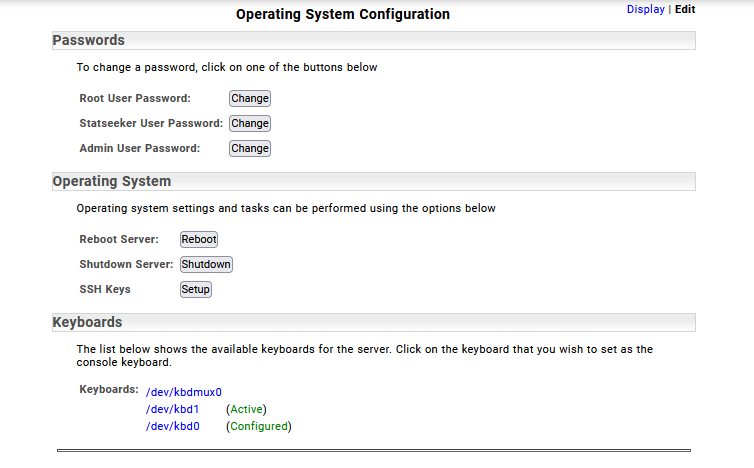
Shutdown Statseeker via the User Interface
- Select Administration > Statseeker Administration > OS Configuration
- Click Edit (top-right)
- Click Shutdown
[top]
Shutdown Statseeker via the Command Line Interface (CLI)
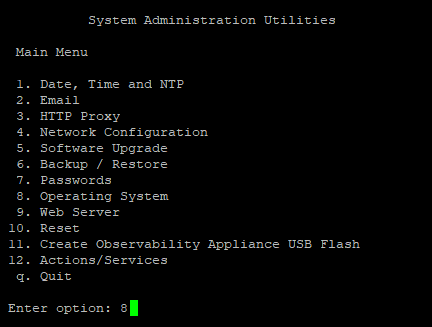
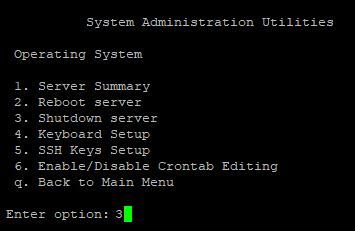
- Access the Statseeker server via SSH and run
- ssadmin
- Enter the server’s root password when prompted
- 8
- 3
[top]
